
You do not need to write code to start automating a small, repeatable piece of work. Gemini Spark is designed around a straightforward idea: define the work, tell it how to handle the work, and choose when it should run.
That makes it useful for routines such as a morning priority brief, a weekly project recap, or a first-pass receipt log. The key is to begin with a low-risk workflow—something you would be comfortable reviewing before it has any real-world consequence.
Before you begin: Gemini Spark availability depends on your account, subscription, country, and settings. It is an experimental feature, so review the current Gemini Spark help before relying on it for an important process.
The simple model: what, how, and when
Spark has three building blocks. Remember them as what, how, and when:
- Task — the what. A task is the outcome you want managed, such as “prepare my weekday priority brief.”
- Skill — the how. A skill is reusable guidance: the sources to check, the format to follow, and the boundaries to respect.
- Schedule — the when. A schedule tells Spark when to run the task—at a time you choose or, in some cases, when a condition is met.
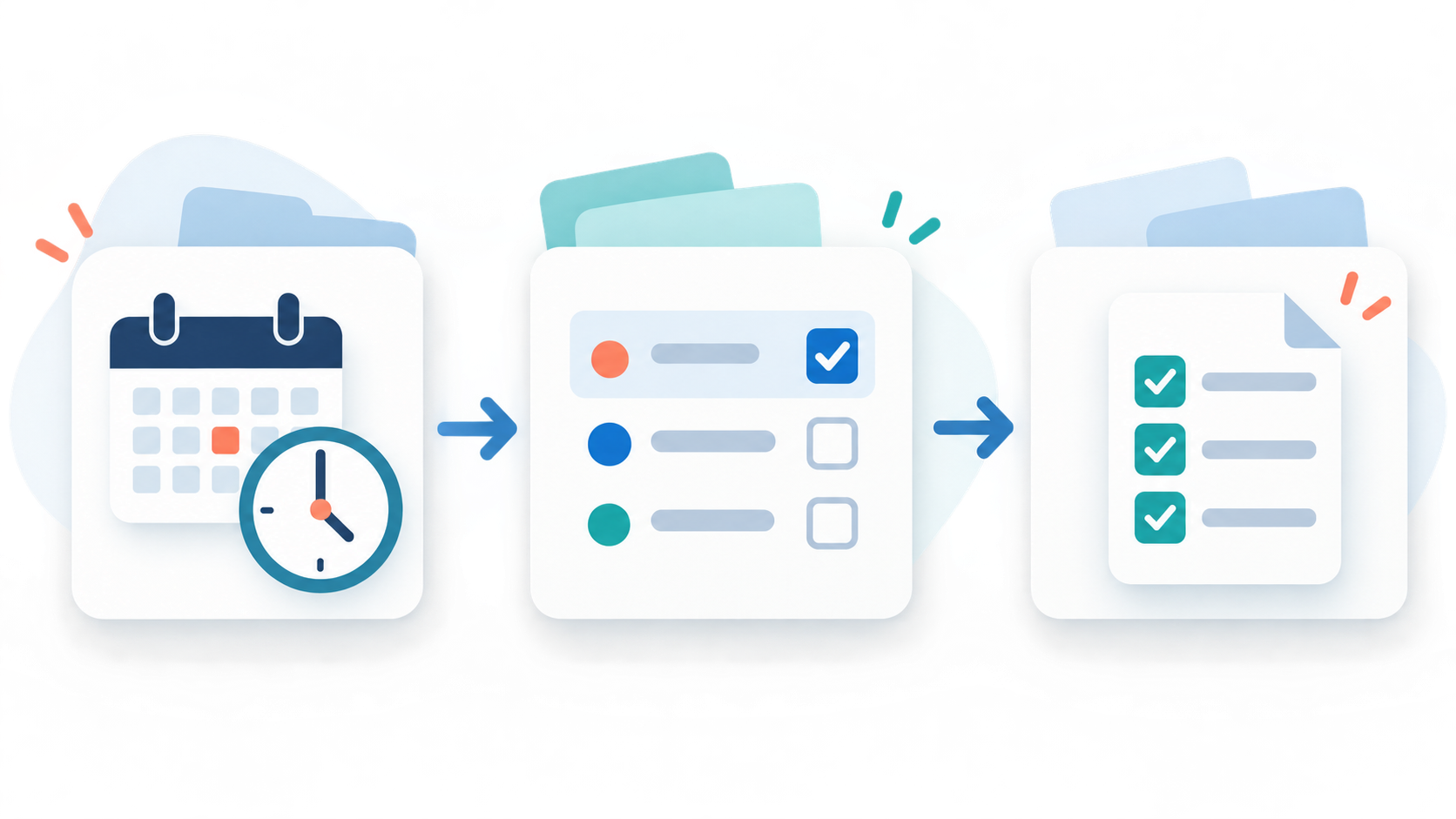
This distinction matters. A schedule is not the work itself, and a skill is not a calendar reminder. Separating the three makes your workflow easier to test, improve, or pause.
Pick a first workflow that is easy to review
Start with something that produces a summary or a draft—not something that sends messages, changes finances, or deletes files.
Here is a good first project: a weekday morning brief. The result is a short list of today’s calendar commitments, important email follow-ups, and the few items that deserve attention first.
Write the job in one sentence before opening Spark:
“Every weekday morning, review my calendar and recent priority email, then prepare a concise priority brief for me to review.”
That sentence already gives the workflow a purpose, timing, sources, and a safe outcome. If it feels vague, make it smaller before moving on.
Step 1: Set up a home for your instructions in Google Drive
Google Drive can be your workflow’s reference library. Create one root folder, then give each repeatable workflow its own subfolder. A simple structure is enough:
Gemini_Skills/
└── daily-briefing/
    ├── SKILL.md
    ├── Sources.md
    └── Output/
SKILL.mdis the single source of truth for the process.Sources.mdlists the folders, files, searches, or calendars the workflow may use.Output/is a predictable place for work you choose to save.
This is not a required product feature; it is an organizing habit. It prevents useful instructions from getting mixed into a busy Drive root and makes it easier for you to see what the agent is allowed to use.
Step 2: Write a small, specific skill
A good skill does one job. Avoid trying to create a single “do everything” assistant. State the goal, the permitted sources, the desired output, and the moments when Spark must stop and ask.
Use this starter template in SKILL.md:
## Objective
Prepare a weekday priority brief from my calendar and priority email.

## Approved sources
- My primary Google Calendar
- Email messages received in the last 24 hours that need a response

## Output
- Three priorities, in plain-language bullets
- Today’s time-sensitive events
- A separate “Needs my review” section for uncertainty

## Rules
1. Do not send, delete, archive, or modify anything.
2. Do not use information outside the approved sources.
3. If an item is ambiguous, include it under “Needs my review.”
4. Keep the brief under 250 words.
The most important line is the first safety rule. Begin in read-and-draft mode. You can expand the workflow later, after you have seen several correct results.
Google’s guidance similarly recommends clear names, descriptions, instructions, and reusable context for skills. See its skill-writing tips when you are ready to refine yours.
Step 3: Create the task in Spark
In the Gemini web app, select Switch to Spark, then describe the task in the task box. You can attach supporting material with the upload tools, including files from Drive. If you already made a skill, type / and select it.
Try this first prompt:
“Use
/daily-briefingto prepare a weekday priority brief. Read only the sources in the skill. Do not make any changes or send anything. Show me the brief for review.”
After you submit it, open the task’s work panel. Check the plan, the files it read or updated, and any request for you to take over. Spark can ask for input during a task, so a task is not a set-it-and-forget-it substitute for your judgment.
Step 4: Add a schedule—and test it before trusting it
Once the task produces a useful result manually, add the timing. In Spark, go to Schedules, choose Create manually for a time-based schedule, name it, choose when it runs, enter the instructions, and select Create. You can include an existing skill by typing / in the instructions.
For the morning brief, use a schedule like this:
“Every weekday at 7:00 AM, use
/daily-briefingto prepare my priority brief. Do not send messages or modify files. Notify me when the draft is ready for review.”
Use Run now to test the schedule before depending on it. Then review the first few outputs. Google notes that schedules may not be ideal for fast-moving or time-critical events, so do not use them as your only alert for a limited inventory, an urgent deadline, or a financial decision. The schedule documentation explains the available schedule types and controls.
Step 5: Add responsibility gradually
When the summary is consistently useful, make only one change at a time. For example:
- Start with a reviewable brief.
- Save the brief to your designated
Output/folder. - Draft an email—but still require your approval to send it.
- Revisit the skill whenever the task makes an incorrect assumption.
Keep a human checkpoint for actions that affect other people, money, appointments, or public information. In practice, the best automation is often the one that prepares 80 percent of the work and leaves the final decision to you.
A quick checklist before you activate a workflow
- Is the goal narrow enough to describe in one sentence?
- Are the allowed sources explicit?
- Does the skill say what Spark must not do?
- Is the output easy for you to verify?
- Did you test the task and schedule with a low-stakes example?
- Is there a clear way to pause the workflow if it behaves unexpectedly?
Your first win is a reliable routine
The real value of Gemini Spark is not a flashy, fully autonomous system. It is a dependable routine you no longer have to reconstruct from scratch every day.
Start with one small task, give it a clear skill, review the output, and only then put it on a schedule. That foundation will make every later workflow easier to understand, troubleshoot, and trust.