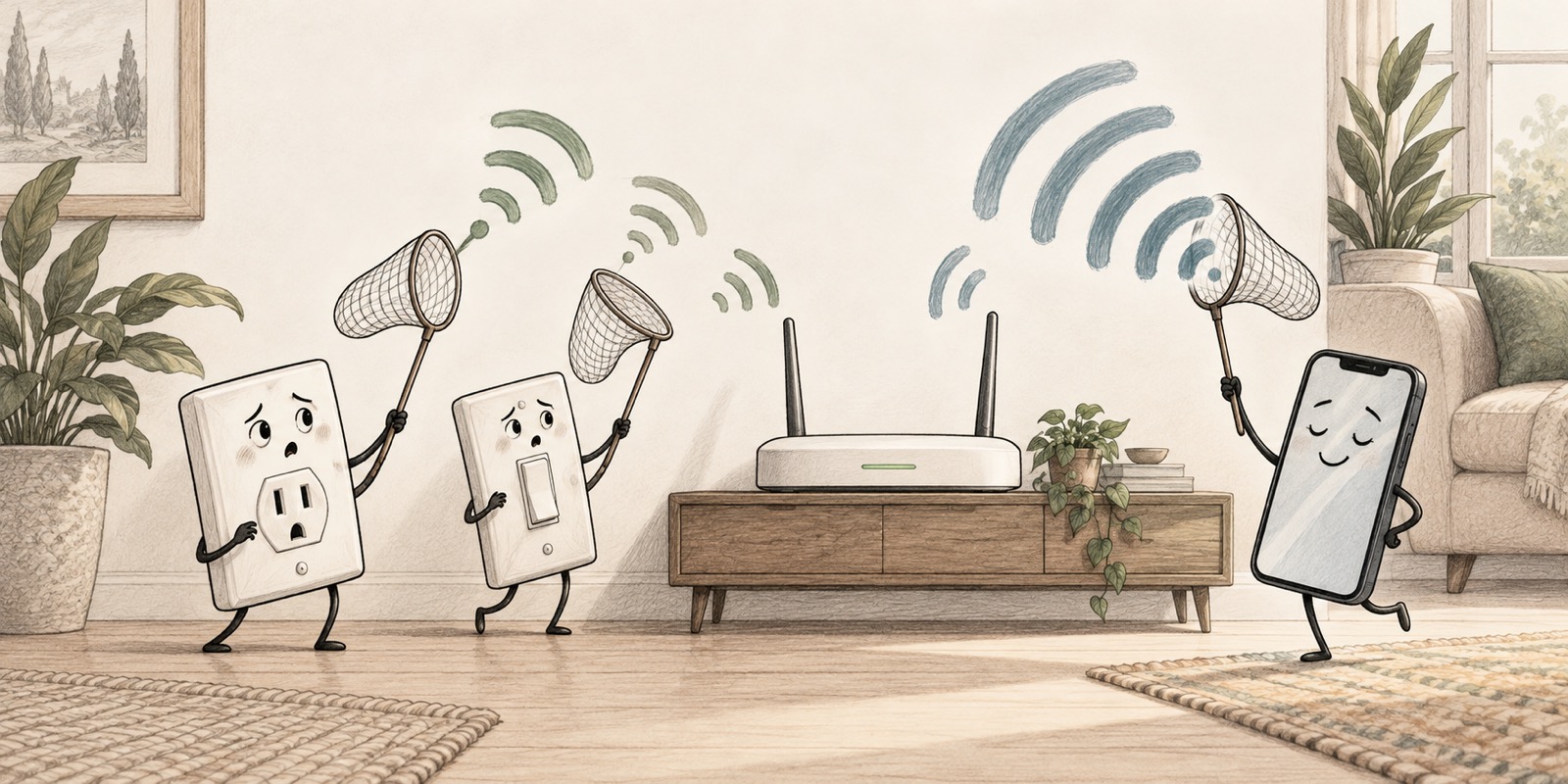
A smart outlet does not need to stream a movie. It needs to stay connected long enough to tell you something useful. Somehow, getting it onto Wi-Fi can still become the most complicated part of the project.
I ran into this with my Leviton smart home setup, which includes Decora Smart GFCI outlets and smart switches. My troubleshooting notes document several GFCI outlets losing their Wi-Fi connection at the same time, flashing amber or yellow, and failing setup with ML0010, “No Devices Found.” My phone could be online while the devices I was trying to reconnect remained unavailable.
That experience is a useful starting point for understanding 2.4 GHz versus 5 GHz Wi-Fi. The device’s supported band matters, but so do the app’s setup process, permissions, signal quality, and network security.
First, 5 GHz and Wi-Fi 5 are different things
People often say “WiFi 5.0” when they mean the 5 GHz band. Those terms describe different things:
- 2.4 GHz and 5 GHz are radio frequency bands.
- Wi-Fi 5 is the generation based on 802.11ac, which uses 5 GHz.
- Wi-Fi 6 can operate on both 2.4 GHz and 5 GHz. A newer router can still serve older devices when it supports their standards and settings.
The number on the router’s box does not tell you which bands an individual outlet can use. Check the device specifications. Intel’s Wi-Fi generation overview separates generations from frequency bands.
Why so many smart devices use 2.4 GHz
For a switch, thermostat, or outlet, coverage and a dependable connection usually matter more than maximum throughput. Sending an on/off command or a status update takes very little data.
Coverage is one reason. In comparable conditions, lower-frequency 2.4 GHz signals generally travel farther and cope better with obstacles than higher-frequency signals. Actual results depend on walls, placement, interference, and the radios involved. An outlet behind furniture or a switch in a wall box may have a harder radio environment than a phone sitting on a table. Intel explains the range and speed tradeoffs between Wi-Fi bands.
Hardware cost and complexity are another reason. A manufacturer can choose a compact, inexpensive 2.4 GHz radio that meets a device’s modest needs without adding dual-band capability. Low-power chip designs can also help battery-operated products, although a mains-powered switch does not need 2.4 GHz simply to save its battery. Espressif’s IoT chip comparison illustrates how connectivity, cost, and power requirements influence hardware choices. These are general design tradeoffs, rather than a statement about which chip Leviton uses.
The limitation is physical: a 2.4 GHz-only radio cannot connect to a 5 GHz signal. An app update or faster internet plan cannot add the missing radio capability.
There are tradeoffs, too. The 2.4 GHz band can be crowded by neighboring networks and other equipment. More range does not guarantee a clean connection.
My Leviton outlets and switches
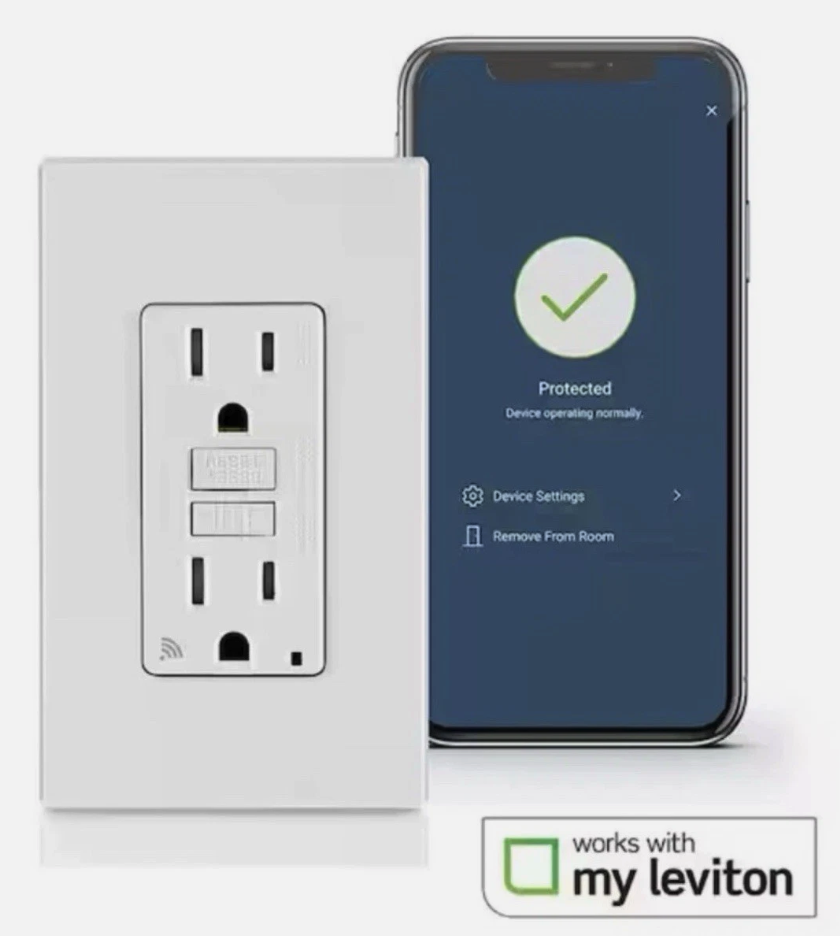
Leviton’s D2GF1 getting started guide specifies 2.4 GHz-only Wi-Fi. That makes band compatibility an essential check when reconnecting one.
My document, Leviton Smart Outlet & eero Wi-Fi Troubleshooting Guide, records the GFCI symptoms and proposes a sequence: temporarily hide the higher Wi-Fi bands, check network compatibility settings, verify iPhone permissions, and retry device setup. It is a troubleshooting record, rather than a confirmed diagnosis. It does not establish which setting caused the outage or document a completed recovery.
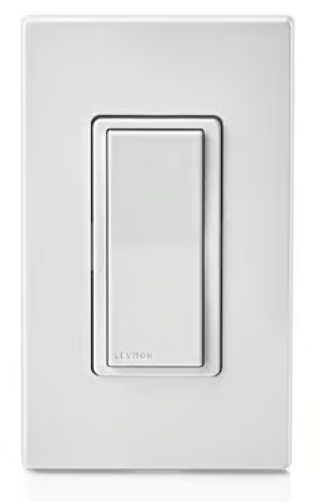
The switches belong in this discussion, but their setup steps should not be copied from the GFCI instructions. Decora Smart includes multiple models and connection types. The photo alone does not establish the exact model, and my guide describes the GFCI failure in more detail than the switches.
Why mesh Wi-Fi can make setup confusing
Mesh systems such as eero normally present one network name across multiple bands. The phone and outlet can use different bands while belonging to the same local network. A phone using 5 GHz does not automatically prevent it from controlling a 2.4 GHz outlet. eero explains its shared network name and automatic band selection.
Setup can be more particular. An app may need Bluetooth, local network discovery, or a temporary connection to the device. Some onboarding processes work more reliably when the phone is also on 2.4 GHz. Guest-network isolation or missing permissions can cause discovery failures even when the password is correct.
My original guide points to band steering as a possible culprit. There is an important qualification: steering cannot make a 2.4 GHz-only outlet use 5 GHz. eero describes steering as favoring higher bands for devices seen supporting them. Treat changing it as a diagnostic experiment, rather than proof of the cause. eero’s networking settings documentation explains that behavior.
A practical troubleshooting sequence
1. Check the basics before changing the router
Confirm the exact device model supports your network, verify the Wi-Fi password, and update the manufacturer’s app. Check whether the device has power and whether other devices are offline. Several failures at once are a reason to investigate the shared network as well as individual devices.
On an iPhone, check Settings → Privacy & Security → Bluetooth and Local Network for My Leviton permissions, where requested. My guide also suggests checking VPNs. If one is active, briefly disconnect it to test whether it affects local discovery, then restore it. iCloud Private Relay is different from a full-device VPN; its presence alone does not establish a local discovery problem.
2. Use eero’s temporary 2.4 GHz setup window
In the eero app, look under Settings → Troubleshooting → My device won’t connect → My device is 2.4 GHz only, then choose the option to temporarily pause the higher bands. Menu wording can vary by app version and hardware.
eero’s current instructions describe a window of up to 10 minutes. My older notes say 10–15 minutes; follow the timer in your app. Retry enrollment during that window. Normal band availability returns afterward.
3. Retry setup using the instructions for that model
Use the manufacturer’s procedure to enter setup mode, then add or reconnect the device in My Leviton. For Smart GFCIs covered by Leviton’s getting started guide, pressing TEST enters setup mode and interrupts power to the protected load. Account for connected equipment before doing that.
My notes include a generic 14-second reset sequence with ambiguous button names. I would not use that as a universal instruction. Follow the exact model’s guide for a factory reset, which may require rebuilding its app configuration. Use the switch’s own instructions for a switch.
A Wi-Fi error and an electrical fault are separate issues. A GFCI that will not reset or reports a protection fault needs the manufacturer’s electrical troubleshooting procedure; reconnecting Wi-Fi is not the remedy.
4. Investigate security compatibility if pairing still fails
A 2.4 GHz requirement does not automatically mean a device cannot use WPA3. Check its model and firmware requirements first.
My guide suggests temporarily disabling WPA3. Current eero software may instead offer encryption choices such as WPA2, WPA3, or Hybrid. If the device’s requirements warrant it, test a supported WPA2-compatible setting and retry. Record the original setting and restore the strongest mode your devices reliably support. Do not make the network open. eero’s encryption guide explains these options.
Change one setting at a time. If you also test client steering, restore it afterward and check whether the device stays connected. This gives you useful evidence instead of several simultaneous changes and no idea which mattered.
5. Check the connection after normal settings return
Once paired, confirm the device appears online, reports status, and responds as expected after the higher bands return. If it drops again, investigate coverage, interference, firmware, and security compatibility. A successful setup is only useful if the connection lasts.
What I would check first next time
Before buying another smart device, I would check its supported bands, security modes, app requirements, and exact model instructions. During setup, I would start with the temporary 2.4 GHz window and app permissions, then work through compatibility settings one at a time.
The useful lesson from my Leviton experience is that a phone with excellent Wi-Fi does not prove every device can join the same way. A small smart outlet has different hardware and a different setup process. Understanding that difference makes the next “No Devices Found” message a little less mysterious—and hopefully keeps a light switch from taking over the afternoon.